⇄ Navigate in Diagram
The Navigate in Diagram menu helps you find your way through large knowledge networks. While exploring a mind map you constantly change your focus by making different nodes the new center (root item).
This menu records your path. Here you can trace your navigation steps and quickly return to previous points.
🎯 Changing the Root Item (Centering on Nodes)
In large mind maps, the view is always organized around the currently active root item. There are several ways to transition to a new root item:
- Clicking on the Item (in Browse Mode): In read-only browsing mode, simply clicking on any node's text bubble smoothly centers and loads it as the new root item.
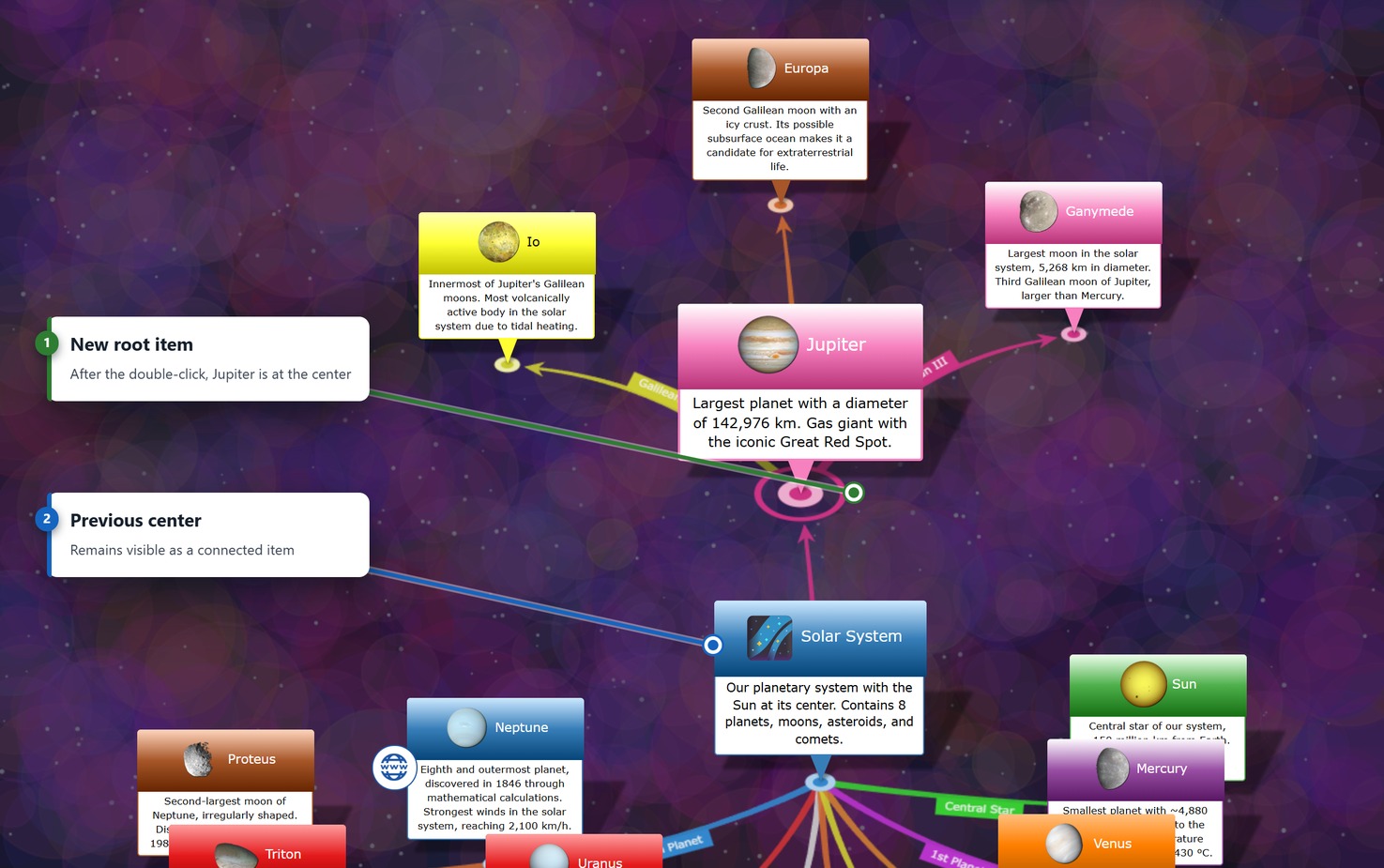
- Double-clicking the Base Circle (in Edit Mode): In edit mode, a single click selects the node and displays the context toolbar. To navigate to a new root item here, double-click the small circular base anchor point at the bottom of the node.
- Keyboard Shortcut (Ctrl+G / Cmd+G): Select any item and press the shortcut to make it the new root item immediately. Press Backspace to navigate back to the previous root item.
- Arrow keys: When an item is selected, the arrow keys take you to the next item in the direction of the arrow, and with Ctrl or Cmd along the tree (parent, first child, siblings); Home selects the root item. In browse mode, Enter loads the selected item as the new center; in the 3D view the camera follows. All keys are listed under Keyboard Shortcuts.
- Quick Search in the Top Bar: Type a term into the search field at the top right; the interactive autocomplete dropdown or pressing Enter jumps straight to that node.
- Timeline: The button with the calendar icon to the left of the view switches shows a strip with every dated item of the database. Clicking an entry makes the corresponding item the new root item — even when it is not currently loaded in the diagram. See Adjust View → Timeline.
- Sidebar Panels: Clicking an item in Search Items or Items in Category immediately centers that item.
- Internal Hyperlinks (
itemid://): Clicking an internal link in a text note focuses the target item if already visible in the diagram, or loads it as the new root item if it is currently out of view.
⬅️ Browse (Chronological History)
The app remembers in the background in strictly chronological order which nodes you have centered one after the other, similar to the browser history when surfing the internet.
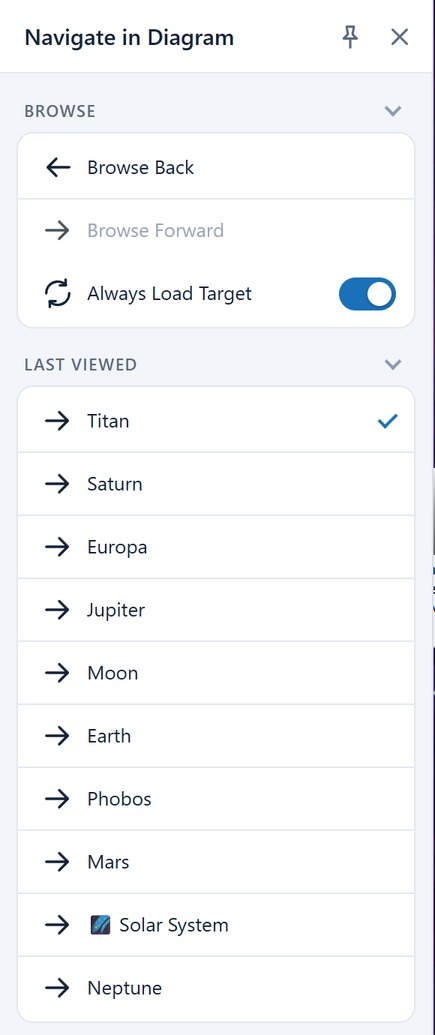
- Browse Back: Jumps exactly the path you took when clicking through the diagram, step by step backwards. This is extremely helpful if you have "gotten lost" in the depths of a large network and want to return to your logical starting point.
- Browse Forward: If you have used the Browse Back function, you can use this button to travel the path in the opposite direction (forward) again.
Browsing always reloads
A step in the history always makes the target the new root item, even when it is still visible in the current diagram. So you get back the picture you left, not just a frame around an item. The Always Load Target option applies to the other routes to an item: search results, the category and attachment panels, item links in notes and the timeline.
🕒 Last Viewed (Quick Access)
While "Browse" lets you repeat every step strictly chronologically, this section is for large, direct jumps.
- Last Viewed (Drop-down list): Clicking on this field opens a drop-down menu with a list of the items you have viewed as root items in your current session. Simply select an entry here (e.g., a main chapter) to immediately jump back to this node without tedious clicking back and make it the new center of your view.